Themes & Backgrounds
SpudSuite comes with a garden of potato-inspired themes. Because your productivity tool should look as good as it works.
Changing Your Theme
To switch themes:
- Go to Settings
- Find the Themes section
- Click on any theme to preview and apply it
Theme changes apply instantly across the entire app.
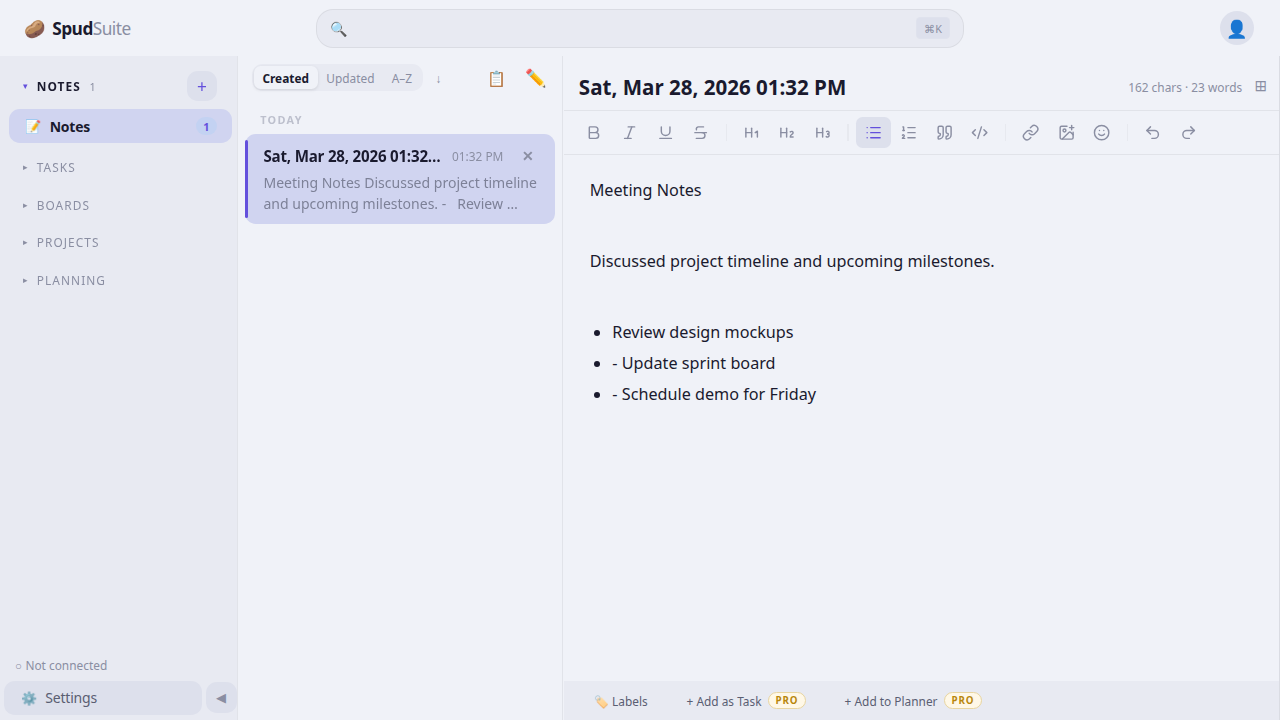
Free Themes (8)
Every SpudSuite user gets access to 8 beautiful themes, each named after a potato variety:
- Spud — The classic dark theme with warm amber accents
- Spud Light — Clean light mode with the same warm personality
- Agria — Golden yellow tones
- Ratte — Earthy, muted palette
- Blue Congo — Deep blue and purple tones
- Sweet Potato — Warm orange and red hues
- Kipfler — Soft, buttery yellows
- Pink Fir Apple — Pink-tinged, warm palette
Pro Themes (15)
Pro subscribers unlock 15 additional premium themes, also named after potato varieties:
- Purple Majesty
- Kennebec
- Desiree
- Adirondack Red
- Red Thumb
- Yukon Gold
- Purple Peruvian
- Vitelotte
- Japanese Sweet
- Fingerling
- Russet
- King Edward
- Maris Piper
- Charlotte
- Jersey Royal
Custom Themes (Pro)
Pro subscribers can create fully custom themes from scratch:
- Go to Settings
- Scroll to the Custom Theme section
- Adjust any color: background, text, accent, border, sidebar, and more
- Save your theme with a name
You can create and save multiple custom themes and switch between them instantly. This lets you design a workspace that's uniquely yours.
Custom Note Backgrounds (Pro)
Pro subscribers can set custom background images or gradients:
Setting a Background
- Go to Settings
- Find the Backgrounds section
- Upload an image or choose a gradient
- Adjust the settings to your liking
Background Controls
- Darkness overlay: Adjust how dark the overlay is on top of your background image. This ensures text remains readable even on bright images. Slide to increase or decrease the darkness.
- Scale: Control how the background image is sized — zoom in or out to get the right framing.
Background Scope
Choose where your background appears:
- Editor only — The background appears behind just the note editor area. The sidebar and other panels keep their theme colors.
- Full note — The background extends across the entire note panel, including the note list and editor.
- Entire app — The background covers the whole SpudSuite interface, including the sidebar.
UI Panel Transparency
When you use an app-wide background, you can adjust the transparency of UI panels (sidebar, note list, toolbar). This lets the background show through the panels for a more immersive look, while still keeping text readable.
Dark backgrounds with light text work best. If your image makes text hard to read, increase the darkness overlay. Start with a subtle image and adjust from there.
Tips
- Try a few themes before settling — each one changes the feel of the app
- Use lighter themes during the day and darker themes at night
- Custom themes are great for matching your company's brand colors
- Background images work best when they're not too busy — subtle textures and gradients are ideal