Notes
Rich text notes with folders, tags, and instant search. Your thoughts, organized like a well-stacked root cellar.
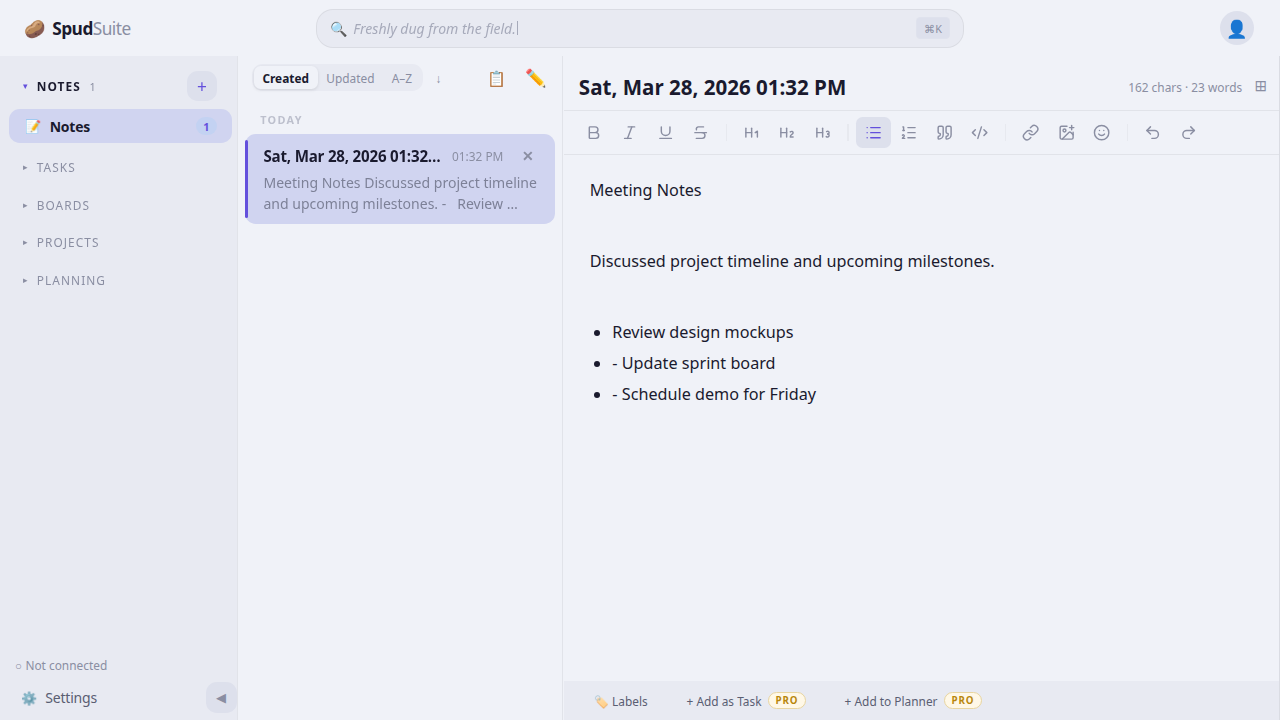
Creating Notes
Create a new note by:
- Clicking the + New Note button
- Pressing
Ctrl/Cmd + N - Right-clicking a folder and selecting "New Note"
Notes are saved automatically as you type. No need to hit save.
The Editor
SpudSuite features a rich text editor with two modes:
WYSIWYG Mode (Default)
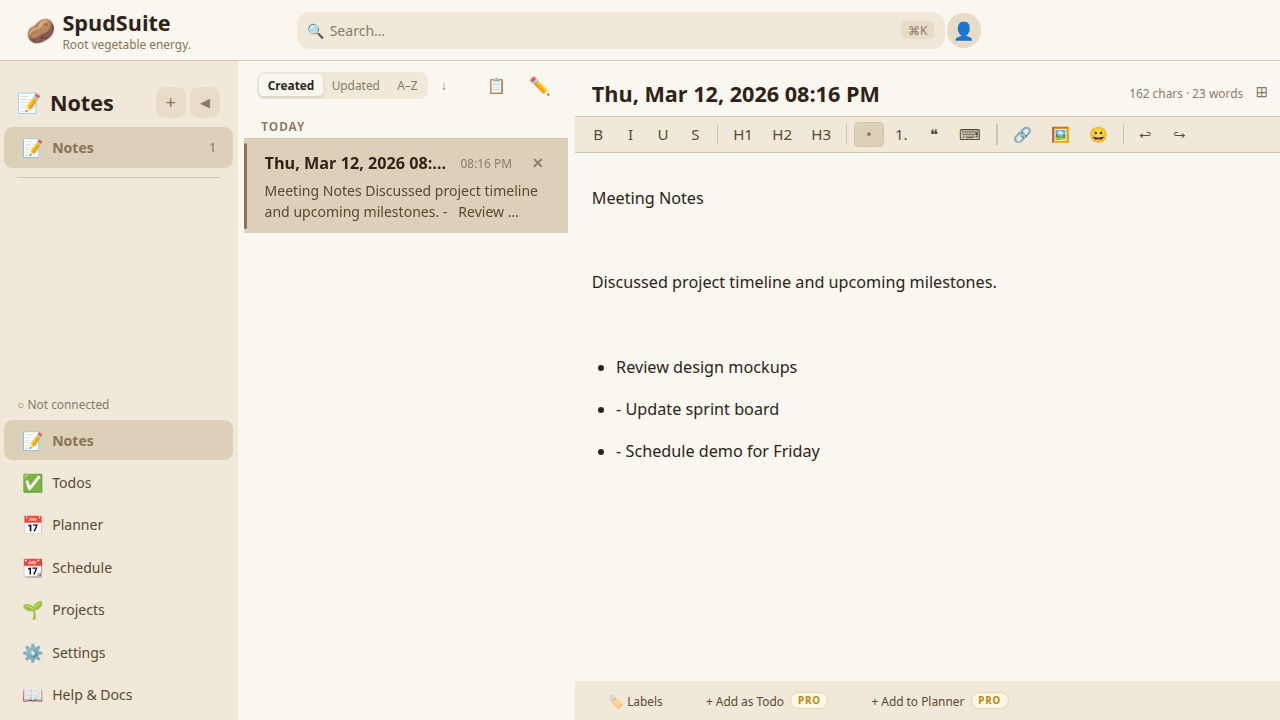
What you see is what you get. Format text visually using the toolbar — bold, italic, headings, lists, code blocks, links, images, and more. Just click and format, no syntax to learn. The toolbar provides buttons for all common formatting options.
Markdown Mode
Prefer raw Markdown? Switch to Markdown mode in Settings under editor options. Write with standard Markdown syntax and see a live preview. Supports all common Markdown features:
**Bold text**
*Italic text*
~~Strikethrough~~
`Inline code`
# Heading 1
## Heading 2
### Heading 3
- Bullet item
- Nested item
1. Numbered item
2. Second item
[Link text](https://example.com)

- [ ] Unchecked item
- [x] Checked itemYou can switch between WYSIWYG and Markdown mode at any time. Your content is preserved when switching — the editor just changes how you interact with it.
Organizing with Folders
Keep your notes tidy with folders:
- Click + New Folder in the sidebar
- Name your folder
- Drag and drop notes into folders
You can nest folders inside other folders for deeper organization. Right-click a folder to rename it, delete it, or create a new note directly inside it.
Tags and Labels
Add tags to notes for cross-folder organization:
- Open a note
- Click the Tags field
- Type a tag name and press Enter
Tags appear as colored pills on your notes. Click any tag to filter all notes with that tag, making it easy to find related notes across different folders.
Sorting Notes
Sort your note list using the sort control at the top of the notes panel:
- Created date — Newest notes first
- Updated date — Most recently edited first
- A-Z — Alphabetical by title
Search
Find anything instantly:
- Press
Ctrl/Cmd + Kto open search - Type any word or phrase
- Results update as you type
Search looks at note titles, content, and tags. It's fast — even with thousands of notes.
Import and Export (Pro)
Pro users on the web can import and export notes as .md (Markdown) files:
- Import: Bring in Markdown files from other apps
- Export: Download your notes as .md files to use anywhere
This makes it easy to migrate to or from SpudSuite, and ensures your notes are always portable.
Cross-Linking (Pro)
Pro users can link notes to other parts of SpudSuite:
- Add notes as todos — Turn a note into a task in your todo list
- Add notes to planner — Create a planner card from a note
This connects your writing to your task management, keeping everything in sync.
Keyboard Shortcuts
| Action | Shortcut |
|---|---|
| New note | Ctrl/Cmd + N |
| Save note | Ctrl/Cmd + S |
| Search | Ctrl/Cmd + K |
| Bold | Ctrl/Cmd + B |
| Italic | Ctrl/Cmd + I |
| Underline | Ctrl/Cmd + U |
| Toggle editor mode | Ctrl/Cmd + / |
| Delete note | Ctrl/Cmd + Backspace |