Projects
Group related folders, todo lists, and boards together. Keep everything for a project in one place — like planting a whole garden bed instead of scattered seeds.
What Are Projects?
Projects bring together the different parts of SpudSuite that relate to a single effort. A project can contain:
- Folders — Note folders for project documentation, research, and reference
- Todo Lists — Task lists for tracking what needs to get done
- Boards — Kanban boards for visual workflow management
Instead of switching between Notes, Todos, and Planner to find everything related to "Website Redesign", you open the project and everything is right there.
Free users can create up to 2 projects. Pro users get unlimited projects. Learn more about Pro.
Creating a Project
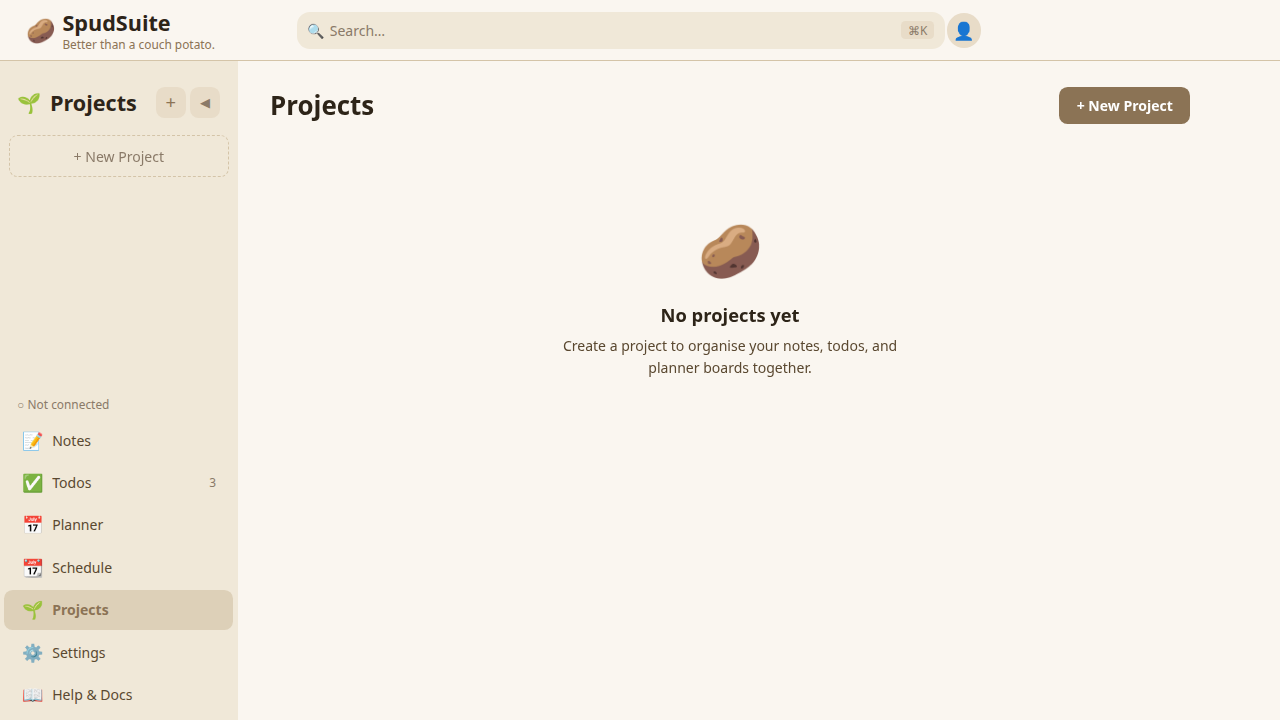
- Click the Projects tab in the sidebar (look for the sprout icon)
- Click + New Project
- Give your project a name
Your new project starts empty — you'll add folders, todo lists, and boards to it.
Adding Items to a Project
A project groups existing items together. You can add:
Folders
Associate note folders with a project. All notes inside those folders become part of the project. Create new folders from within the project view, or add existing folders.
Todo Lists
Add todo lists to your project. Create new lists or associate existing ones. All tasks in those lists are part of the project.
Boards
Add planner boards to your project. Create new boards or associate existing ones. Cards on those boards are part of the project.
How Project Ownership Works
When an item belongs to a project, a few things change:
- Prefix labels: When you view project-owned items in the standalone Notes, Todos, or Planner views, they show a prefix indicating which project they belong to (e.g., "Website Redesign" or "Website Redesign - Tasks")
- Deletion protection: Items owned by a project are protected from accidental deletion in standalone views. To delete them, you need to go through the project view or remove them from the project first
- Organization: Inside the project view, you see all associated folders, lists, and boards in one unified interface
The Project View
When you open a project, you see a unified view of all its contents:
- A list of all associated folders, todo lists, and boards
- Quick access to jump into any item
- The ability to add or remove items from the project
Think of it as a dashboard for everything related to that project.
Use Cases
Here are some ways to use projects:
- Client work: A folder for client notes and documents, a todo list for deliverables, and a board for tracking progress
- Product launch: Research notes, marketing tasks, and a launch timeline board
- Home renovation: Inspiration notes, shopping lists, and a board for tracking room-by-room progress
- Course or class: Lecture notes, assignment tasks, and a board for tracking modules
Tips
- Use projects for anything that involves notes AND tasks AND planning — that's where they shine
- Keep project names short and descriptive
- Don't put everything in projects — simple notes and quick tasks are fine on their own
- Review your projects regularly and archive ones that are complete