Schedule
A Gantt-style timeline view of your planner cards. Visualize your project timelines and never drop the potato again.
Overview
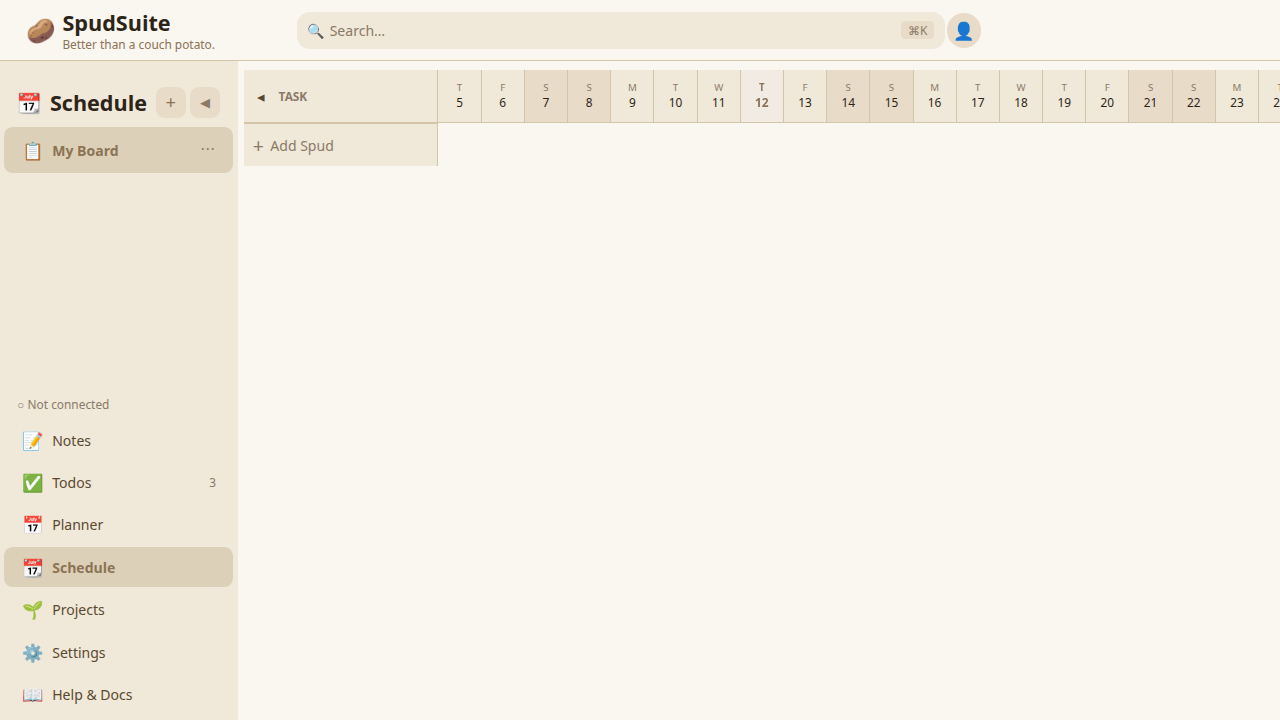
The Schedule view displays your planner cards on a timeline. Any card from your Planner boards that has start and end dates will appear here as a horizontal bar spanning the date range. This gives you a Gantt-chart-style overview of what's happening and when.
Schedule is a different way to view your planner cards. The data is the same — when you add dates to a card in the Planner, it shows up here. When you move things around in the Schedule, the card dates update in the Planner too.
Accessing the Schedule
- Click the Schedule tab in the sidebar
- Your planner cards with start/end dates appear on the timeline
Cards without dates won't appear on the Schedule. To see a card here, open it in the Planner and set start and end dates.
Reading the Timeline
The timeline shows dates along the horizontal axis. Each card appears as a bar:
- The bar starts at the card's start date and ends at the end date
- Cards are color-coded by their board or labels
- Overlapping cards stack vertically so you can see everything
Scroll left and right to move through time. Use the zoom controls to adjust the time scale.
Adding Dates to Cards
To make a planner card appear on the Schedule:
- Go to the Planner view
- Click on a card to open it
- Set a start date and end date
- The card now appears on the Schedule timeline
You can also set just an end date if you only care about the deadline — the card will appear as a single-day marker.
Navigating
- Scroll left and right to move through time
- Click "Today" to jump back to the current date
- Zoom in/out to see more or less time at once
When to Use Schedule vs. Planner
| Use | When you want to... |
|---|---|
| Planner | Manage the status of tasks (To Do, In Progress, Done) |
| Schedule | See when tasks happen over time and spot overlaps |
Both views show the same planner cards — they're just different perspectives. Use the Planner for day-to-day task management and the Schedule for timeline planning.
Tips
- Set realistic date ranges — if a task takes a week, make the bar span a week
- Use the Schedule to spot overloaded weeks before they happen
- Check the Schedule when planning new work to see what else is already scheduled
- Group related boards into a Project to see all related timelines together