Quick Start
Get up and running with SpudSuite in under 2 minutes. No sign-up required.
Step 1: Open the App
The fastest way to start is on the web:
- Go to spudsuite.com/app
- That's it. You're in.
SpudSuite works entirely in your browser as a PWA. Your notes are saved locally in your browser until you set up cloud sync.
Step 2: Create Your First Note
- Click the Notes tab in the sidebar
- Click the + New Note button
- Give it a title and start writing
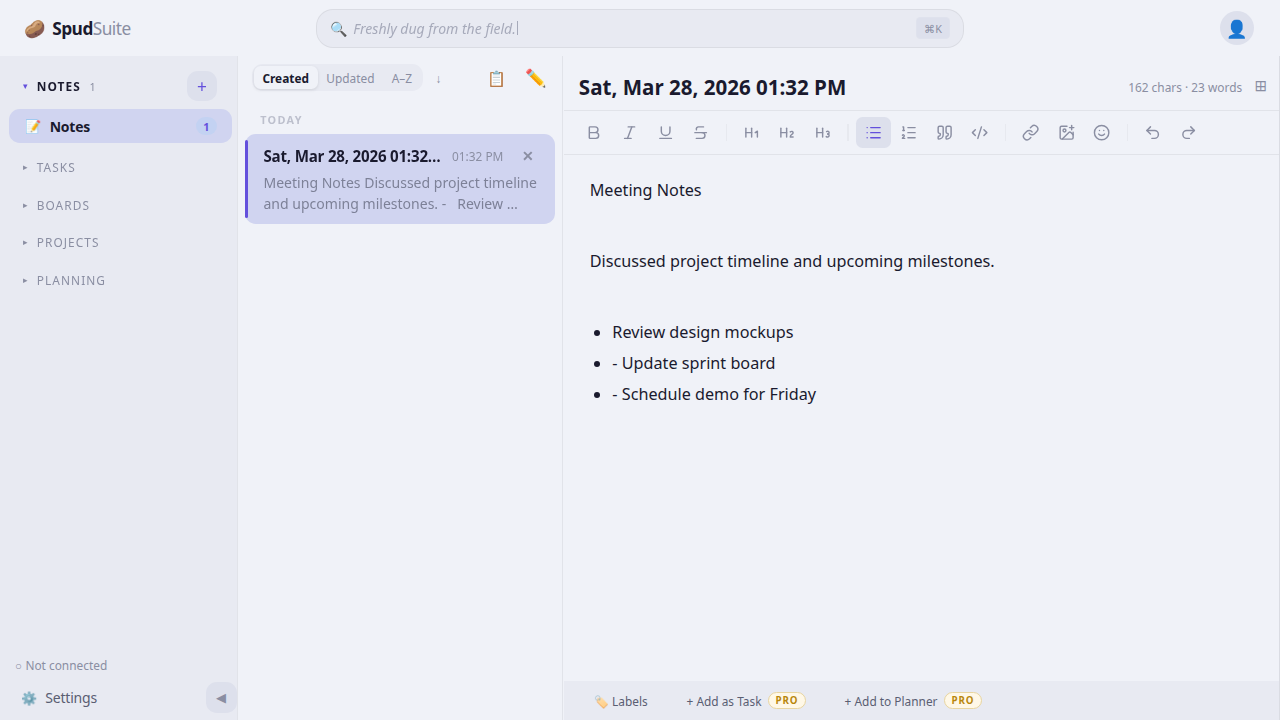
The editor defaults to WYSIWYG mode — format text visually with the toolbar. You can switch to Markdown mode in Settings if you prefer writing raw Markdown.
Notes save automatically as you type. No need to hit save — SpudSuite has your back.
Step 3: Organize with Folders
- Click + New Folder in the notes sidebar
- Name your folder (e.g., "Work", "Personal", "Recipes")
- Drag notes into folders to organize them
You can add tags/labels to notes for cross-folder organization too. Click the tag area on any note to add labels.
Step 4: Add Some Todos
Switch to the Todos view in the sidebar:
- Click the Todos tab in the sidebar
- Create a new todo list or use the default one
- Type a task and press Enter
- Set due dates by clicking the calendar icon on any task
Tasks are organized into sections by date — overdue, today, upcoming, and no date — so you always know what needs attention.
Step 5: Try the Planner
For visual project management, switch to the Planner view:
- Click Planner in the sidebar
- Create a new board
- Add columns (e.g., "To Do", "In Progress", "Done")
- Add cards and drag them between columns
Cards can have labels, due dates, and descriptions. Set start and end dates on cards to see them on the Schedule timeline.
Step 6: Set Up Cloud Sync (Optional)
Want your notes everywhere? Connect your own cloud storage:
- Click Settings in the sidebar
- Choose Google Drive or Dropbox
- Authorize SpudSuite (we only access a private app folder)
- Your data syncs automatically across all your devices
SpudSuite never sees your data. Sync happens directly between your device and your cloud storage. No accounts, no servers, no tracking. Zero-knowledge architecture.
Keyboard Shortcuts
Power users love these:
| Action | Shortcut |
|---|---|
| New note | Ctrl/Cmd + N |
| Search | Ctrl/Cmd + K |
| Bold | Ctrl/Cmd + B |
| Italic | Ctrl/Cmd + I |
| Save | Ctrl/Cmd + S |
| Toggle sidebar | Ctrl/Cmd + \ |
Next Steps
- Explore Notes in depth
- Set up Projects to group related items
- Try the Planner for visual project management
- Connect cloud sync for cross-device access
- Check out Pro features for themes, templates, and more
Happy note-taking!